
Before you start
- Use a computer. Square's downloads are in the Square Dashboard on the web, and a bigger screen makes the import easier to check.
- Owners and admins can import clients and appointments. Anyone else needs access to customers, appointments, and services.
- Check your time zone in Settings, so every appointment lands at the right time.
- Add your services and team in Furbello first if you can. Furbello then matches the service and staff names in Square's file to yours.
Move from Square in six steps
Step 1
Download your client list from Square
In the Square Dashboard, go to Customers, then Customer directory, then Directory. Click Import / Export, then Export customers. Choose All Customers, click Export, and click Download when the file is ready.
You get a CSV file with one row per client. Any fields you added for dogs in Square, like Dog Name, Breed, or Weight, come along at the end of each row.
Square client list, first rows3 rows shown, 10 columns First Name Last Name Email Address Phone Number Memo Square Customer ID Last Visit Dog Name Breed Weight Dana Whitaker dana.whitaker@example.com '+16015550111 SQ9000EXAMPLE 2026-10-20 Biscuit Goldendoodle 45 Marcus Bell marcus.bell@example.com '+16015550112 SQ9001EXAMPLE 2026-10-21 Rocky Mini Schnauzer 18 Priya Kapoor priya.kapoor@example.com '+16015550113 Prefers morning drop off SQ9002EXAMPLE 2026-10-22 Mochi Shih Tzu 12 A few of its columns, from a made up shop. Scroll sideways to see every column.
Step 2
Download your appointments from Square
In the Square Dashboard, go to Appointments (on some Square plans it's under Payments, then Appointments). Click Settings, then History, and click Export. Square saves a CSV file with your appointments, past and upcoming.
Square appointments file, first rows3 rows shown, 8 columns status service start end client_name client_phone staff note_from_business accepted Full Groom 10-07-2026 09:00:00 AM 10-07-2026 11:30:00 AM Dana Whitaker +16015550111 Jamie Chen Short body, teddy face declined Full Groom, Teeth Brushing 09-02-2026 04:00:00 PM 09-02-2026 05:45:00 PM Marcus Bell +16015550112 Sunny Alvarez accepted Mini Groom (feet,face,fanny) 12-10-2026 10:00:00 AM 12-10-2026 10:45:00 AM Priya Kapoor +16015550113 Jamie Chen A few of its columns, from a made up shop. Scroll sideways to see every column.
Keep both files just as Square saves them. There's no need to open them in Excel or tidy anything up: saving them again in another program can change the dates and phone numbers.
Step 3
Open Import in Furbello
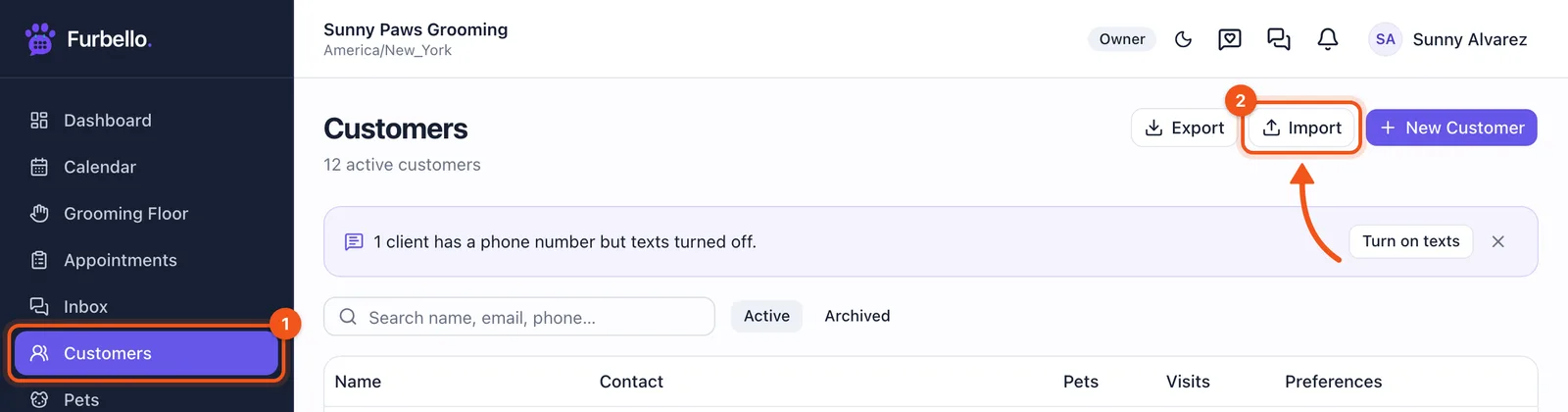
In the menu, open Customers (1), then click Import (2) at the top right.
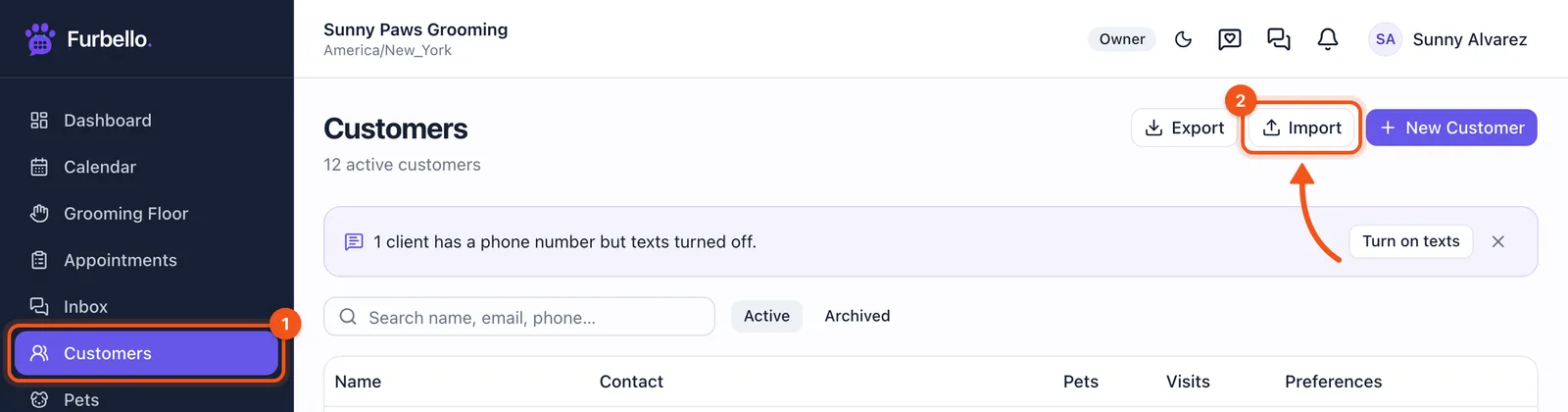
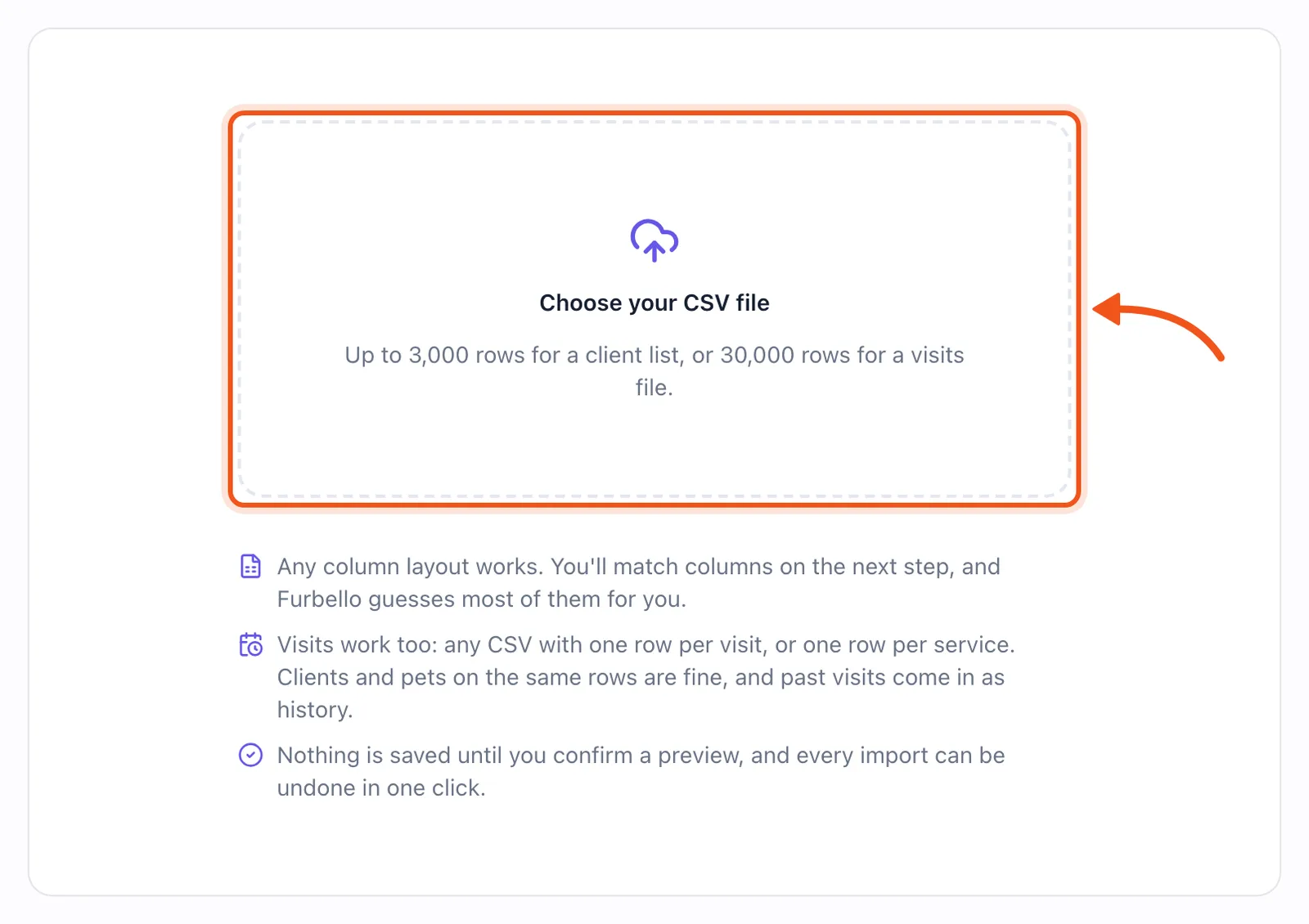
Customers, then Import. Click Choose your CSV file and pick the client list first.
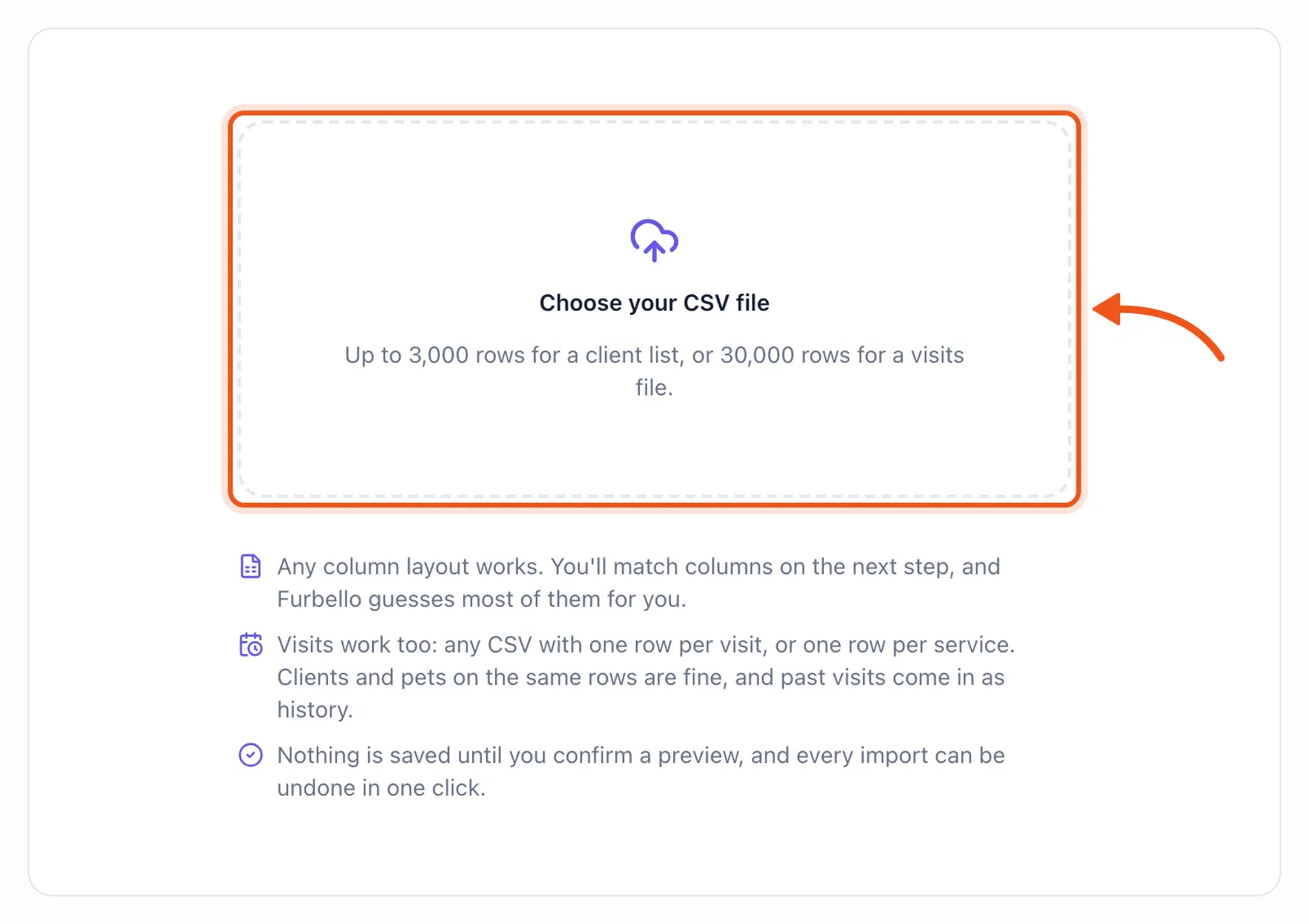
Nothing is saved until you confirm a preview. Step 4
Bring in your client list
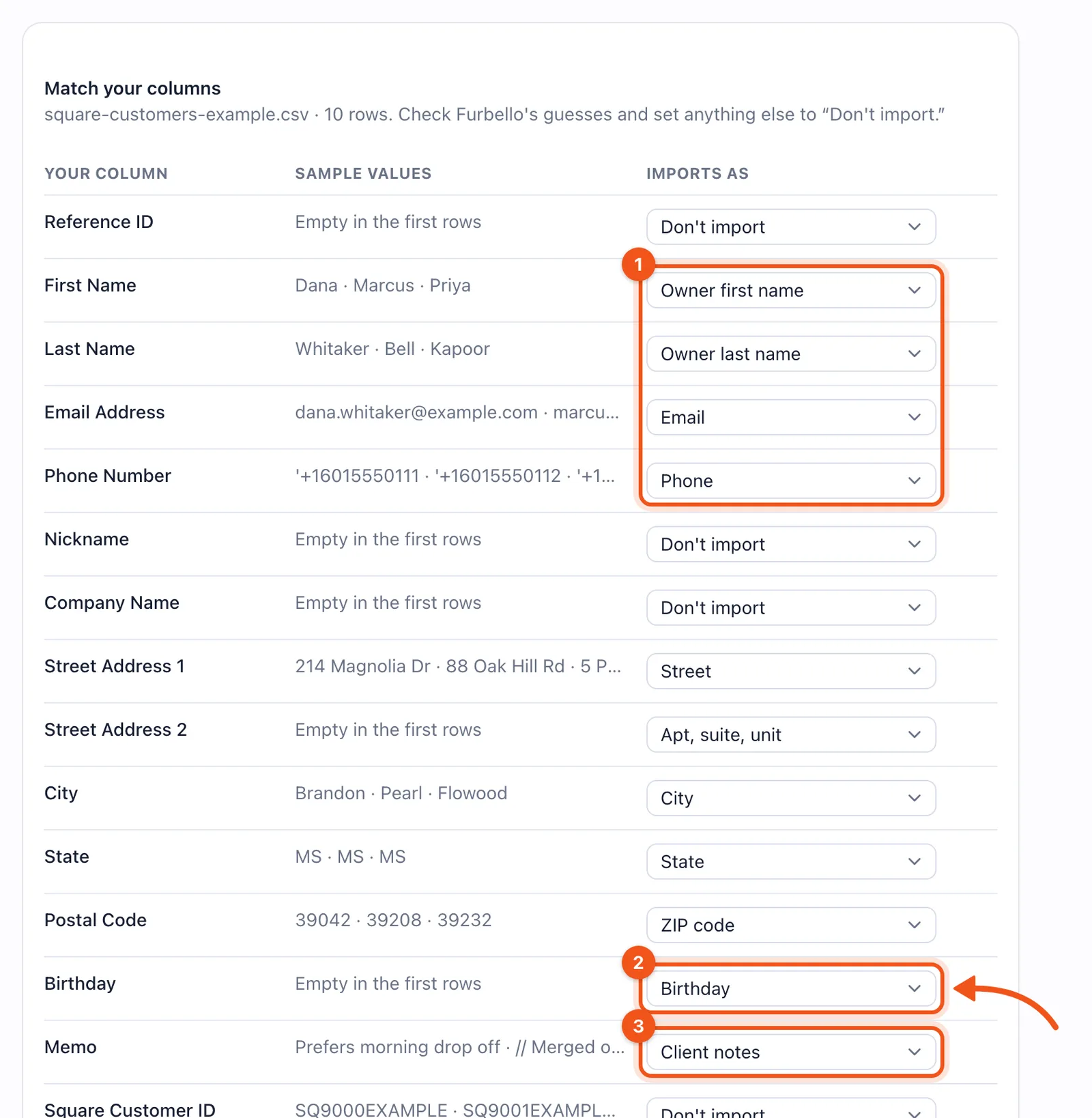
Furbello matches Square's columns for you. Check the Imports as menus on the right:
- Names, email, and phone are matched to the owner's name, Email, and Phone.
- Square's Birthday column is your client's birthday, not the dog's. If yours has anything in it, set it to Don't import.
- Square's Memo goes to Client notes. The lines Square adds when it merges two profiles are left out.
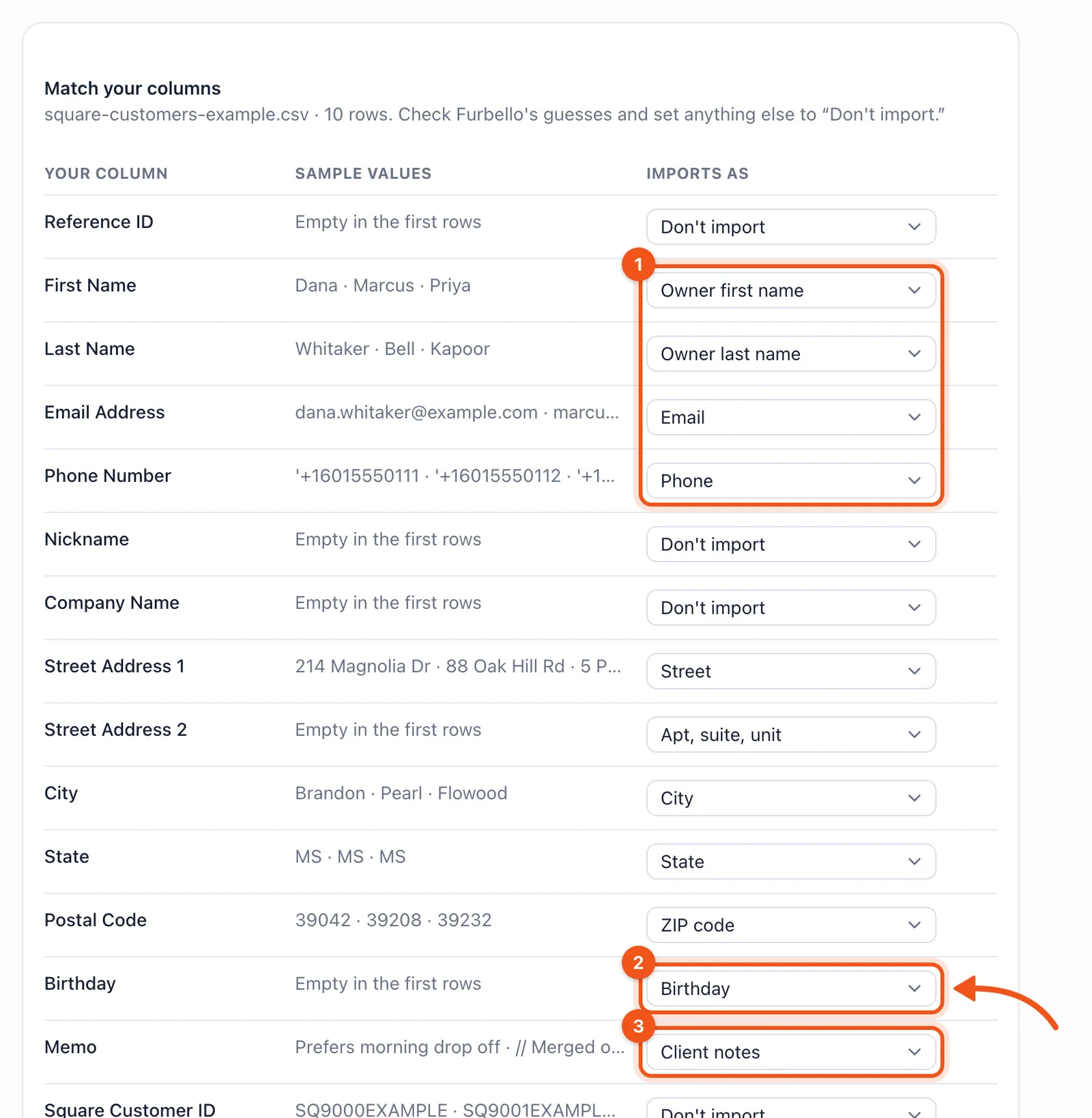
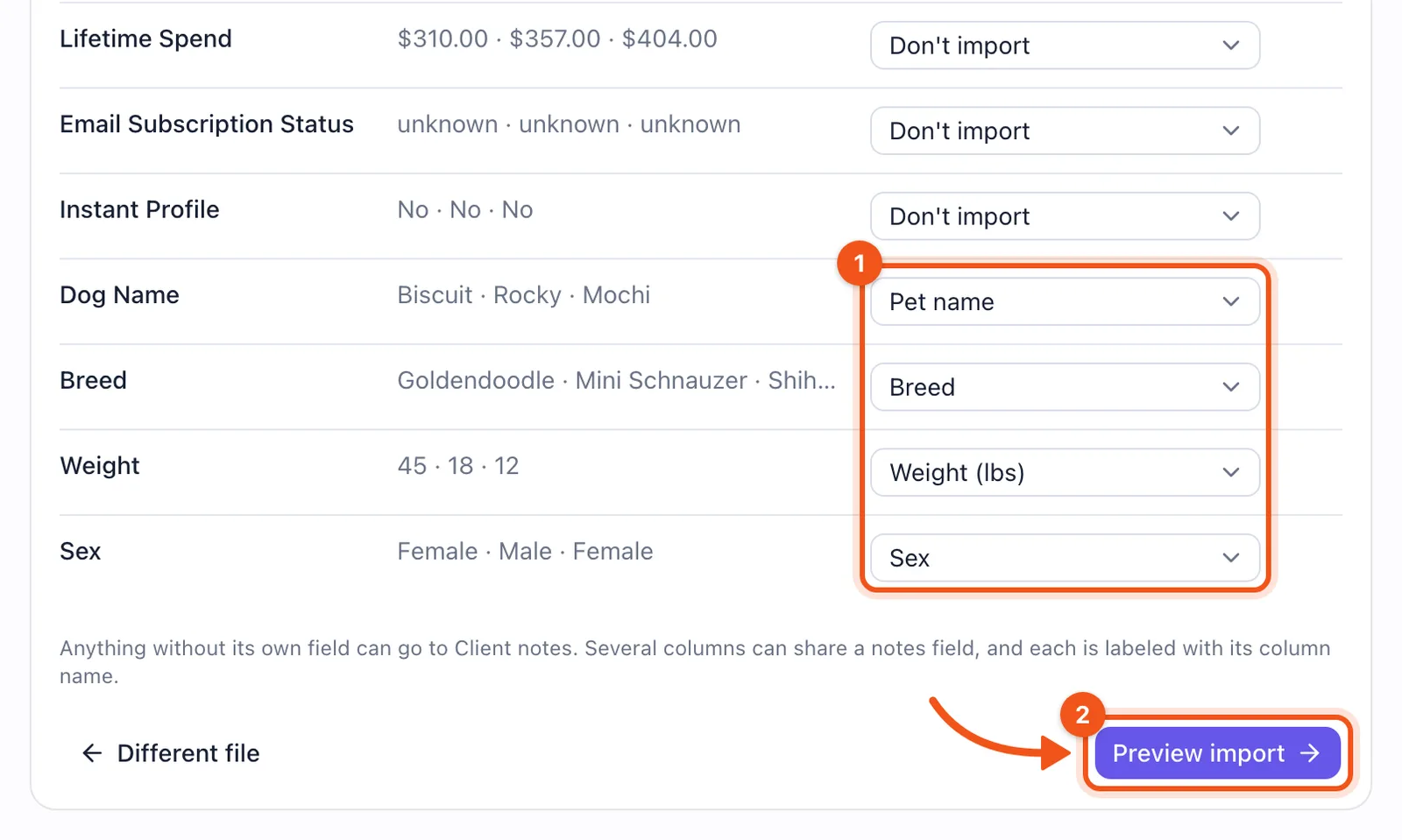
Square's client columns, matched. Scroll down to the fields you added for dogs:
- They should say Pet name, Breed, Weight (lbs), and Sex. If one of yours has another name, pick the right field in its menu.
- Click Preview import.
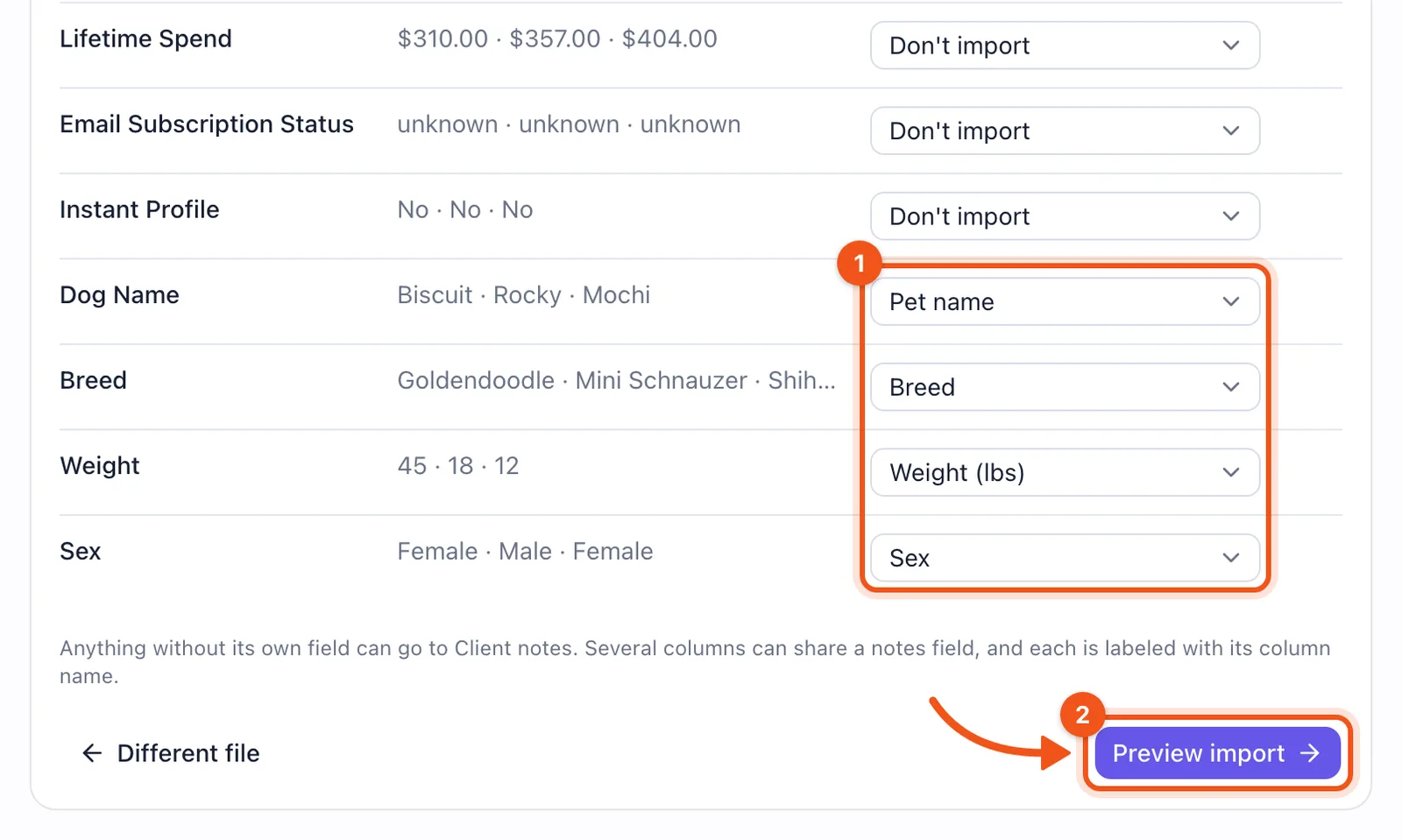
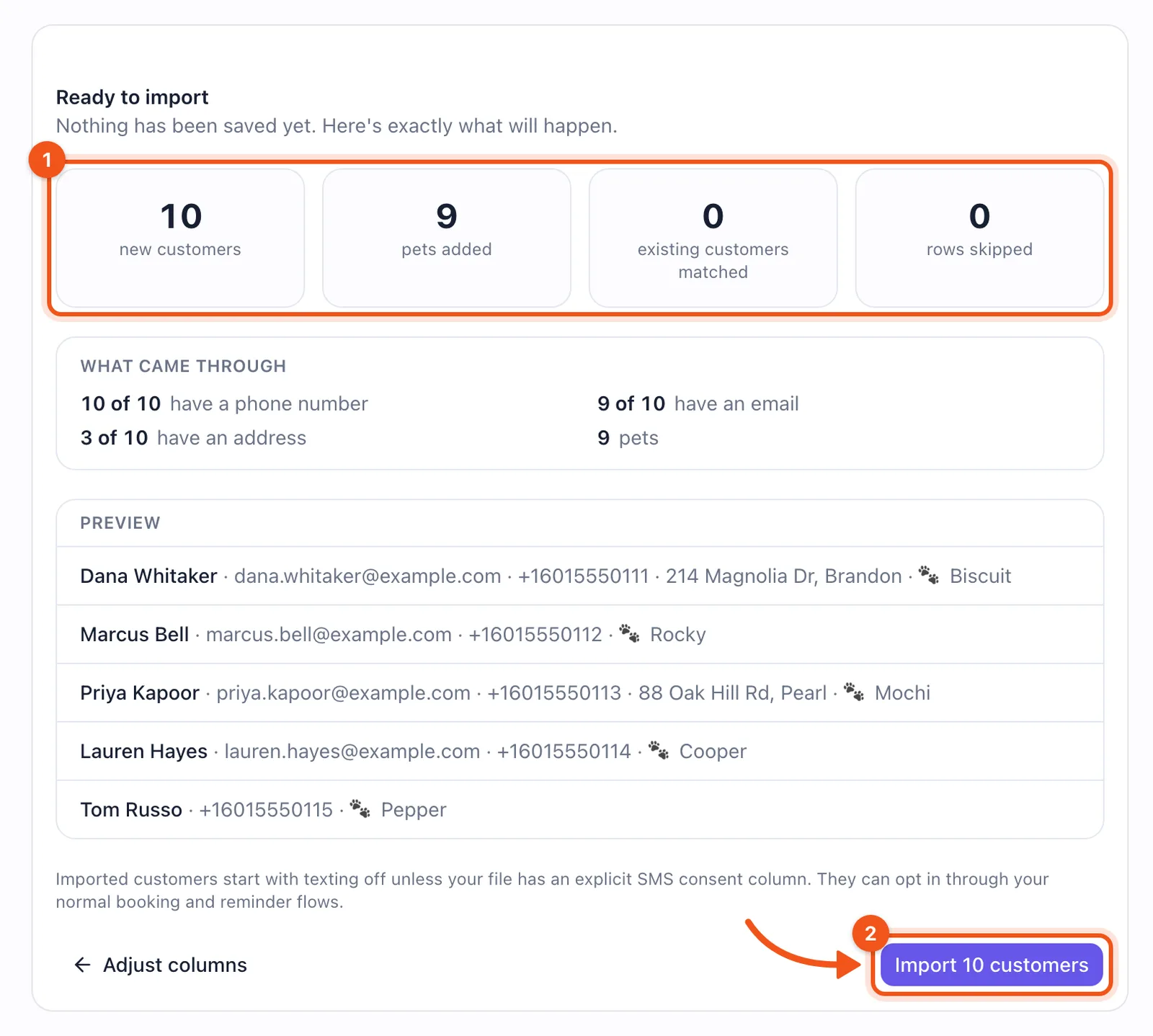
Your dog fields become each client's pet. The preview shows what will happen before anything is saved (1): new clients, dogs added, and clients you already have, who are matched by email or phone instead of doubled. Click Import (2).
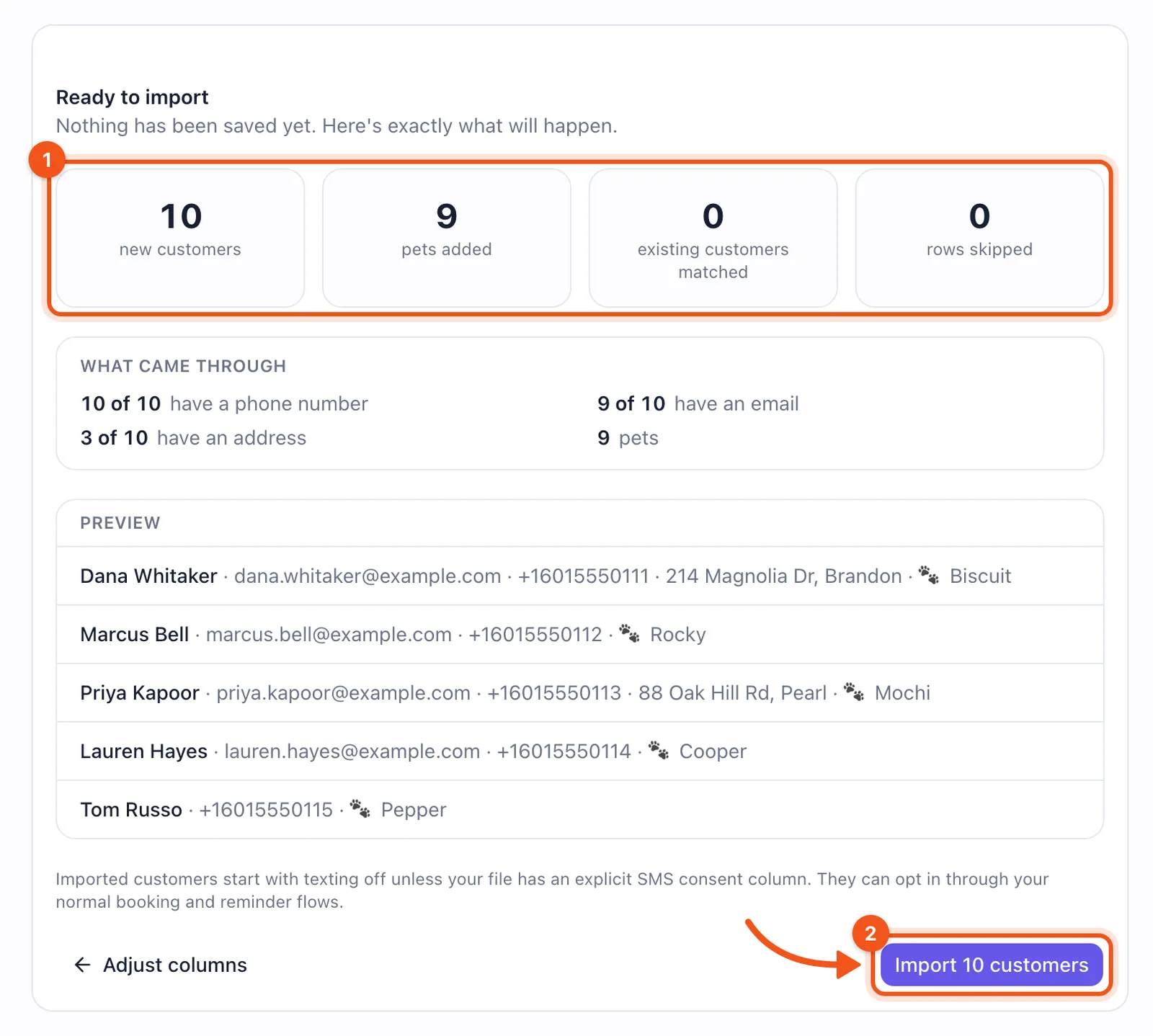
Check the counts, then import. Step 5
Then bring in your appointments
Go back to Customers, click Import again, and choose the appointments file.
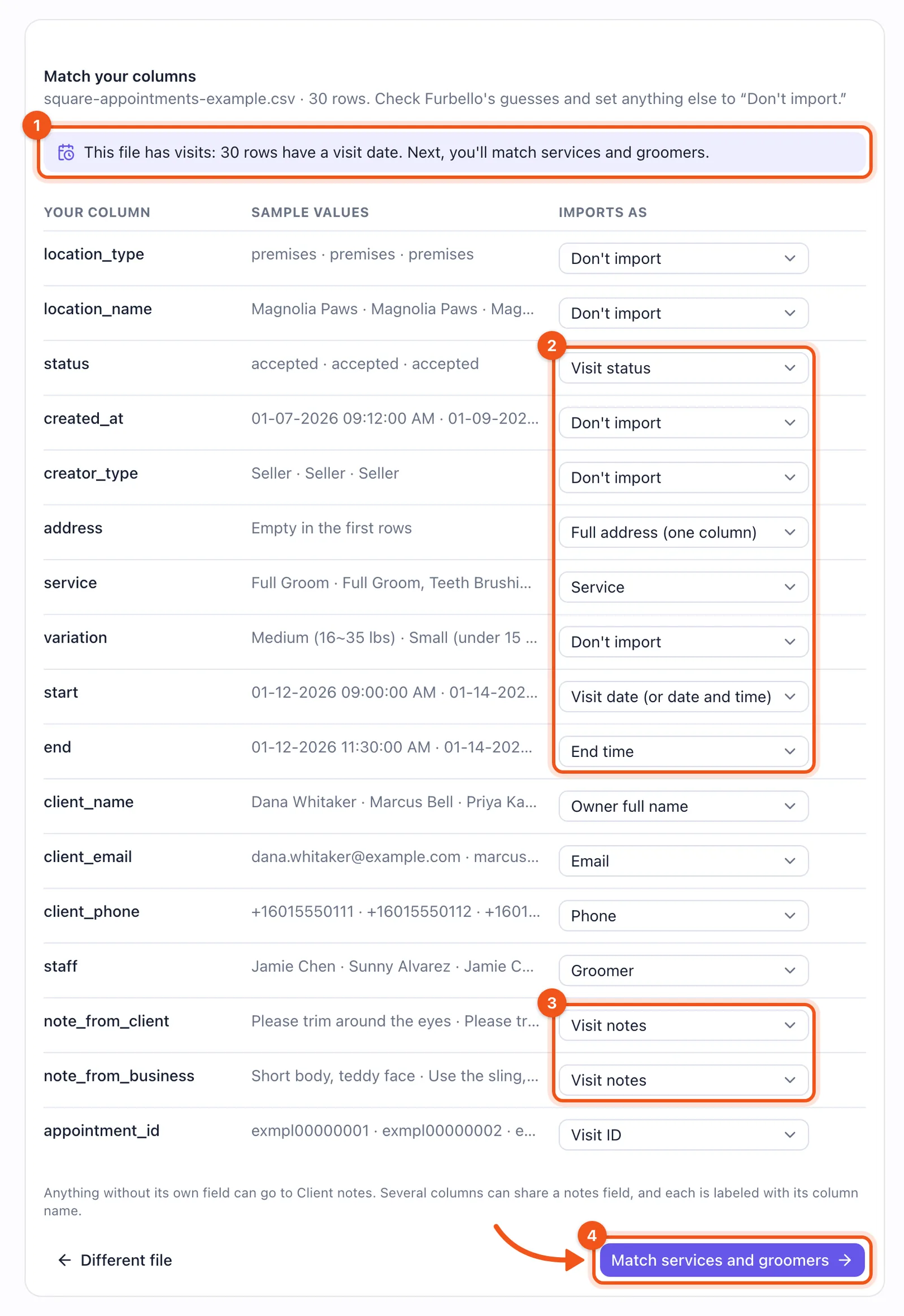
- Furbello sees the file has visits.
- The status, service, start, and end are read for you. Cancelled appointments and requests you declined come in as cancelled, and no shows as no shows.
- Notes from your clients and your own notes both become Visit notes.
- Click Match services and groomers.
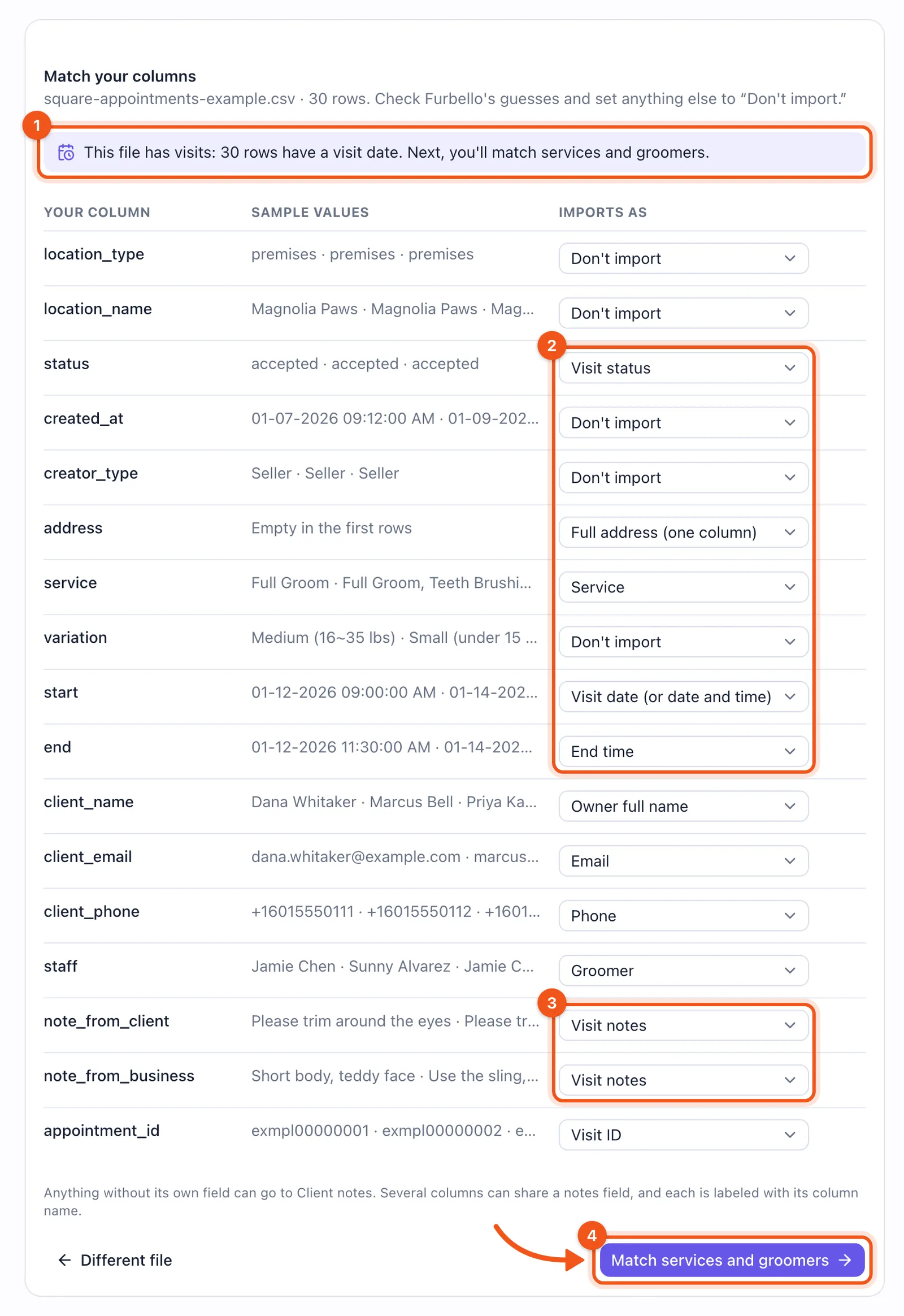
Square's appointment columns, matched. Next, match the names in Square's file to yours:
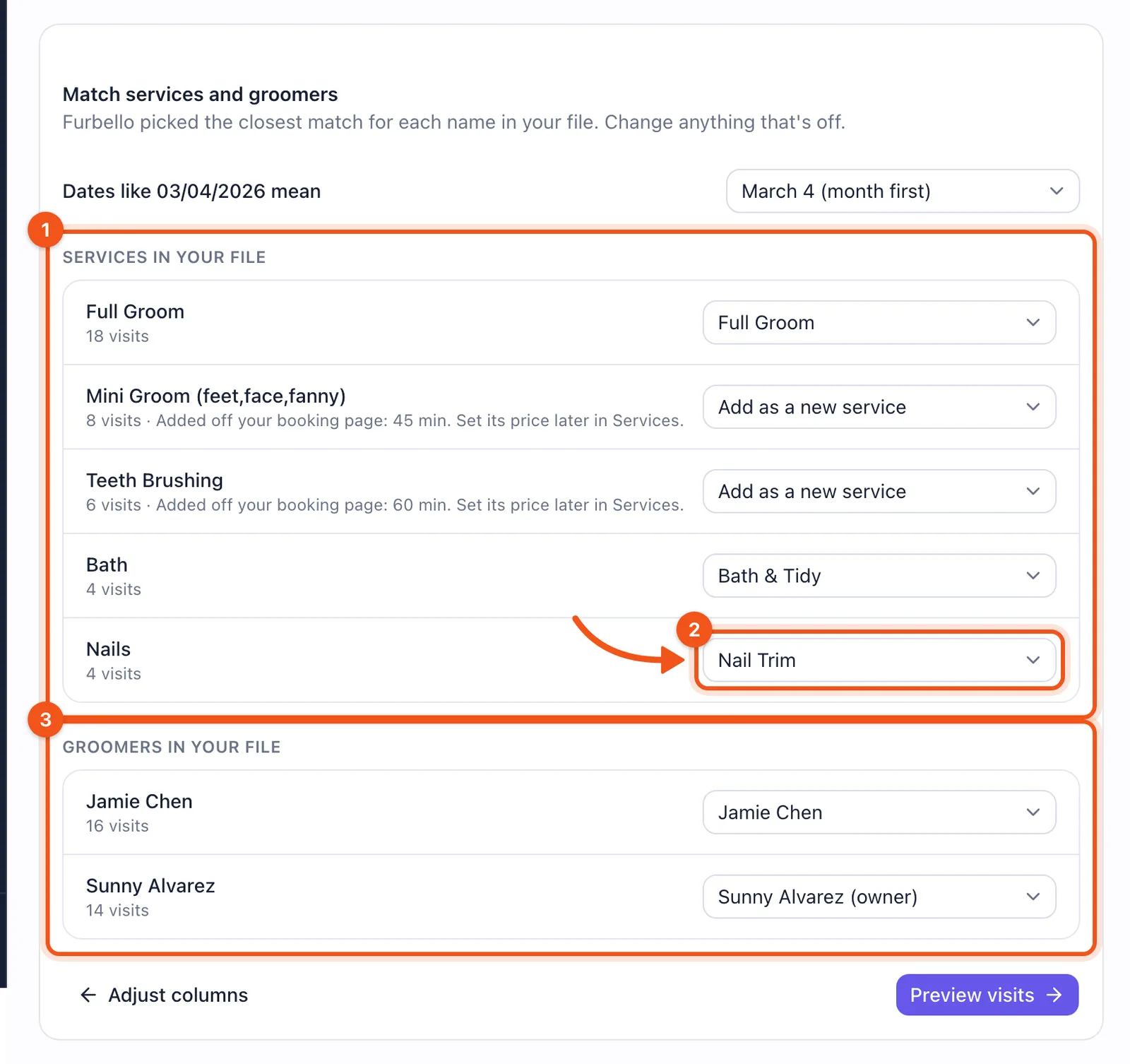
- Each service in the file gets its closest match. One you don't have yet shows Add as a new service, which creates it off your booking page so you can set its price later in Services.
- Change any match that's off. Here, Square's Nails is this shop's Nail Trim.
- Match each Square staff member to someone on your team.
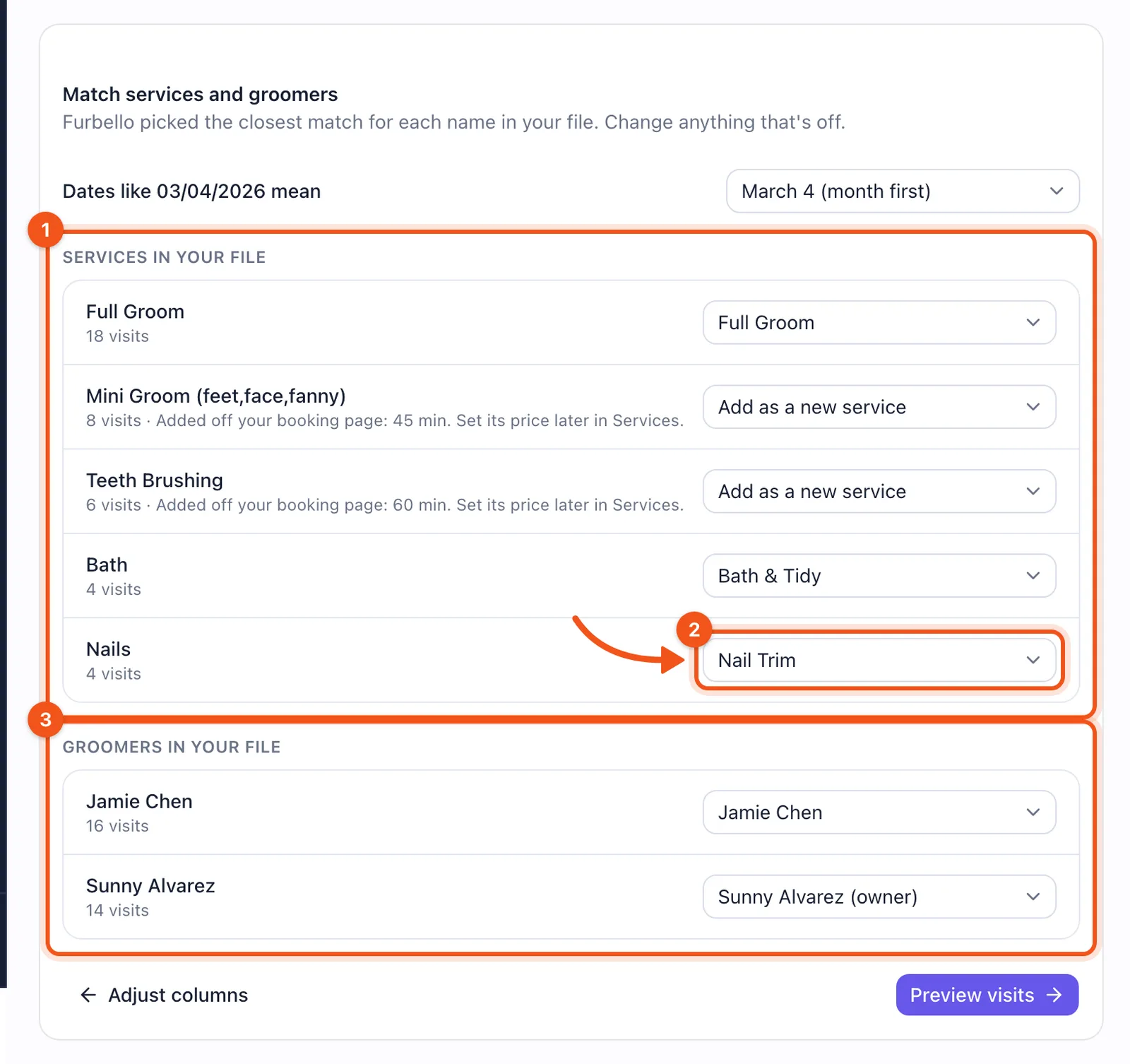
Square's services and staff, matched to yours. Click Preview visits and check the numbers:
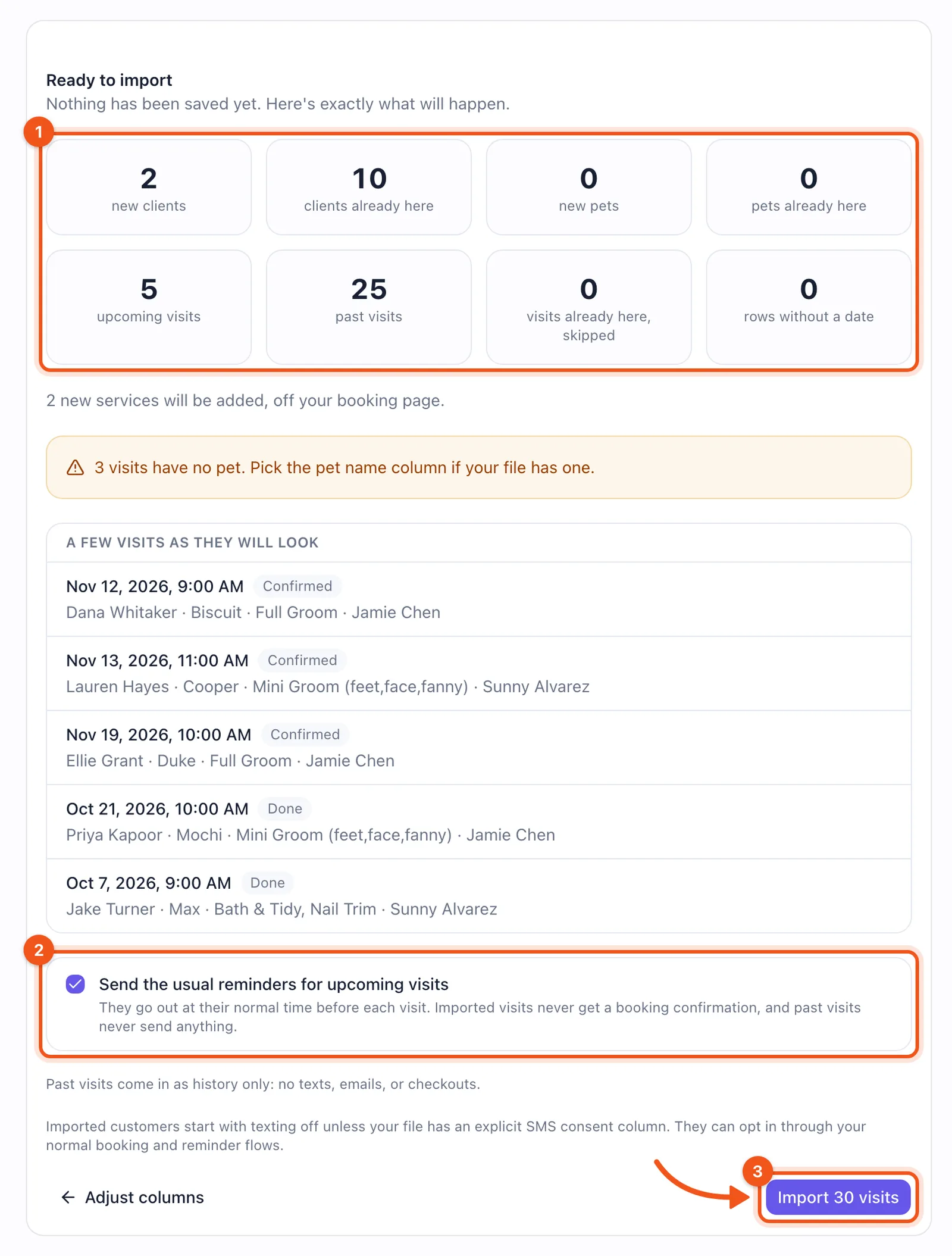
- Clients already here are the ones from your client list, so nobody is doubled. Past visits become history, and upcoming visits become real bookings.
- Leave Send the usual reminders for upcoming visits on, and those clients get your normal reminders. Untick it to send nothing at all.
- Click Import.
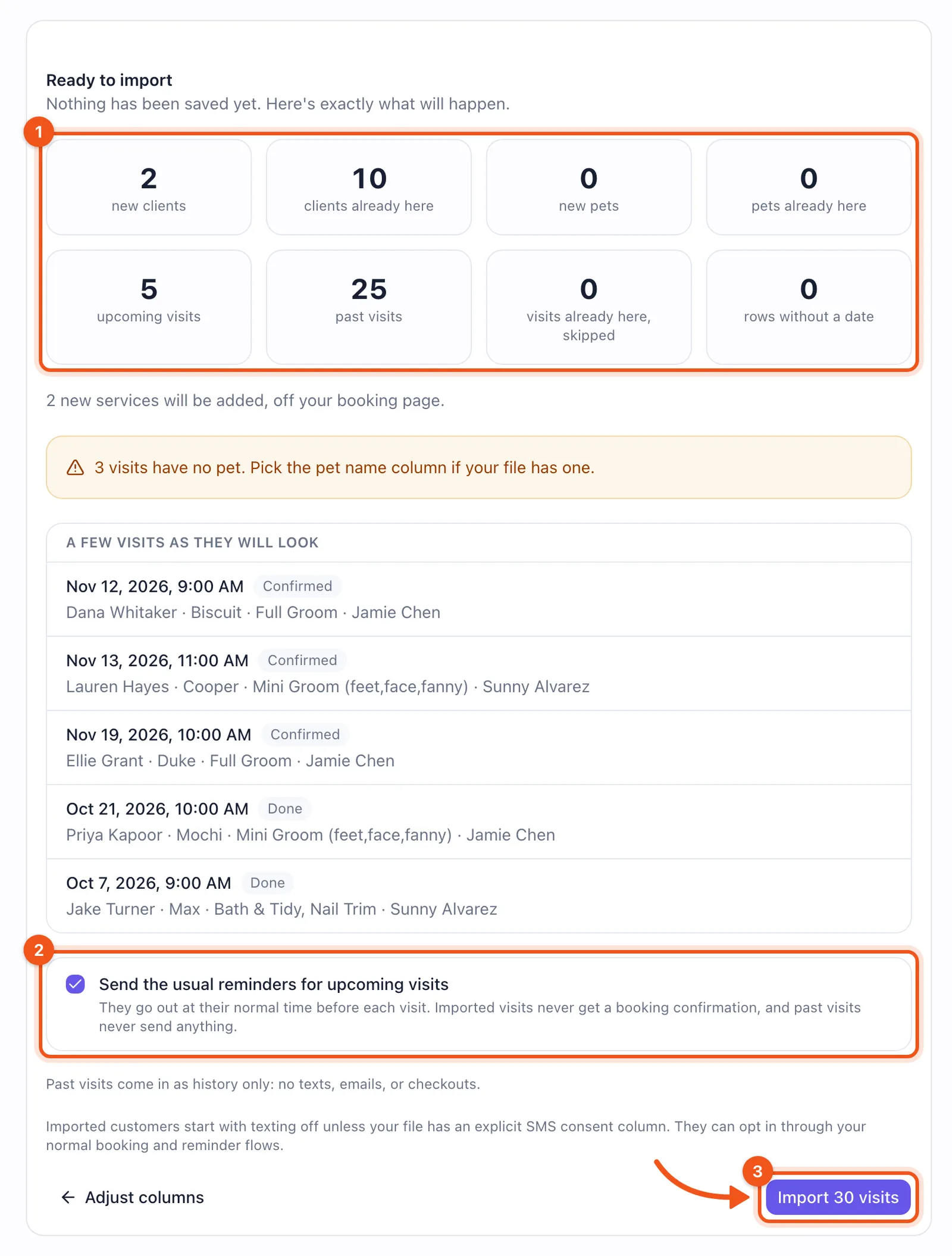
Upcoming visits, past visits, and reminders, before anything is saved. Step 6
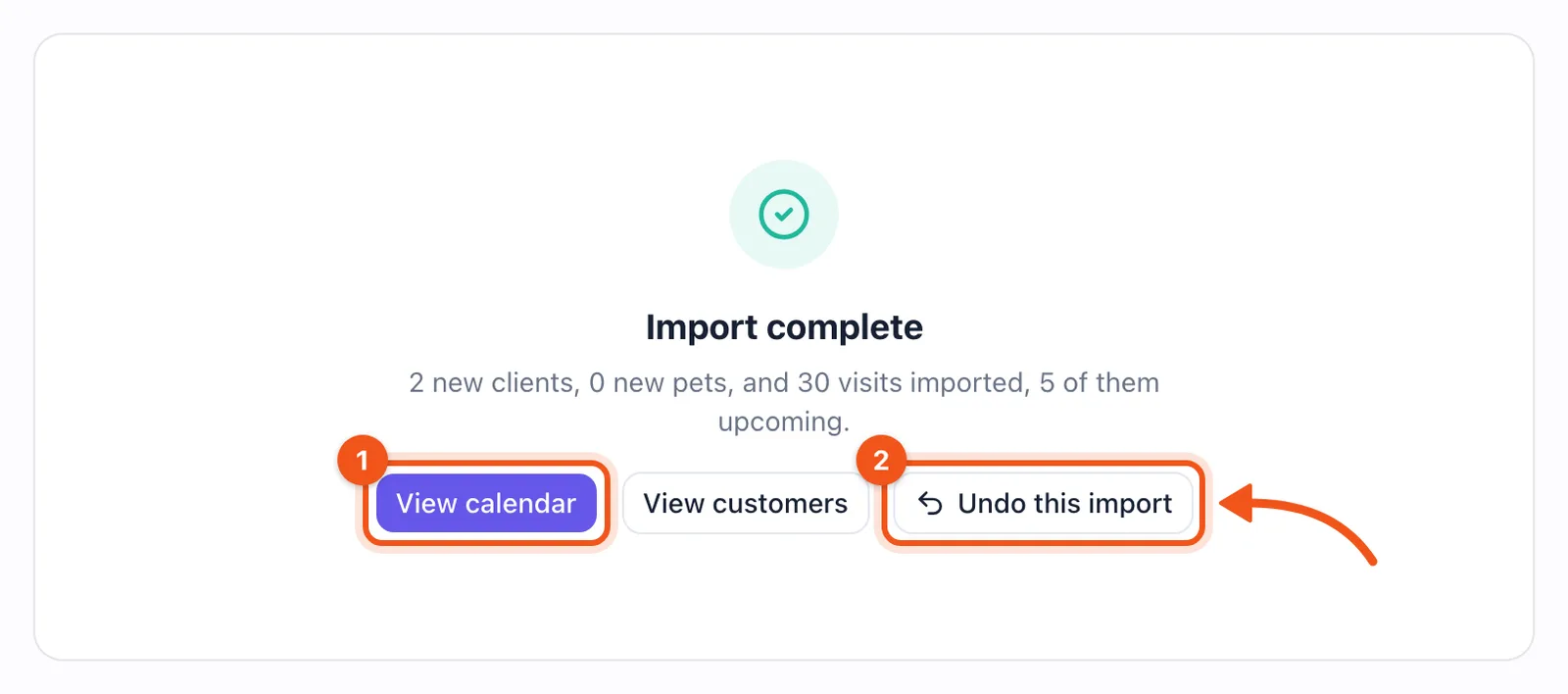
Check your calendar, or undo
When it's done, View calendar (1) shows your upcoming appointments. If something looks off, Undo this import (2) takes out everything that import added, so you can fix a match and run it again.
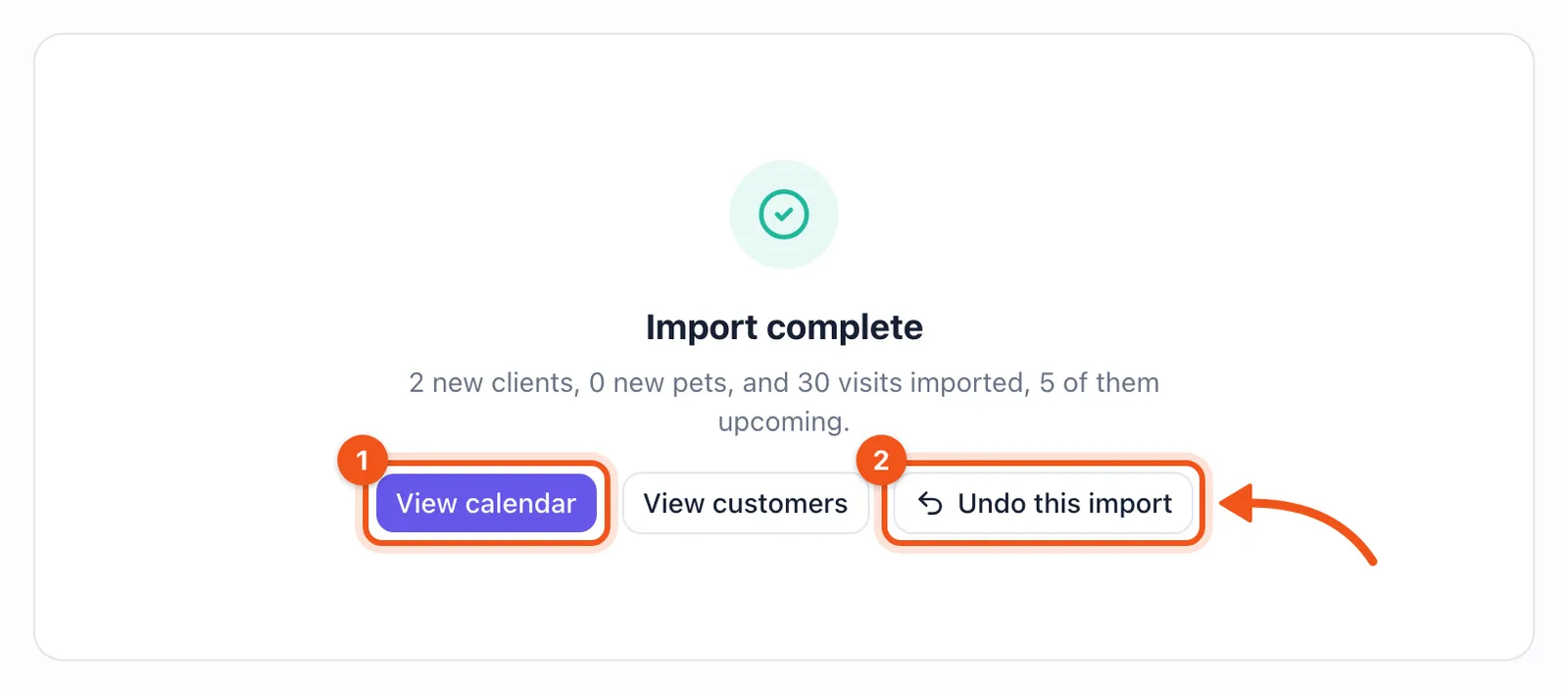
Done. Undo is right there if you need it.
What comes over from Square
Clients: names, phone numbers, emails, addresses, and memos. Square profiles that share an email or phone become one client.
Dogs: name, breed, weight, sex, and color, from the fields you added for them in Square.
Past appointments: date and time, services, groomer, and notes, as each client's visit history. Cancelled appointments and declined requests come in as cancelled.
Upcoming appointments: real bookings on your calendar, with your usual reminders if you leave them on.
Which dog came: Square doesn't keep track of it. A client with one dog gets that dog on every visit. For clients with more than one dog, visits come in without a dog named, and the notes keep any names you typed.
A second dog kept in its own fields (like Dog #2 Name) doesn't come in on its own. Add those dogs on the client's page.
Prices: Square's appointment file doesn't include them, so past visits show your Furbello prices for those services.
Staying in Square: saved cards, payments, and gift cards.
Will my clients get messages?
Not for anything in the past. Past appointments come in as history only, and imported appointments never get a booking confirmation. Upcoming appointments get your usual reminders only if you leave reminders on in the preview.
Square's files don't say which clients agreed to texts, so imported clients start with texts off and reminders go by email. If your clients agreed to texts in Square, Turn on texts on the Customers page turns them on for everyone at once.
Your Square receipt comments
Square can also download the comments clients left on their receipts. Those don't import, but your favorites can go in Reviews, then Add a review, and show on your Furbello website.
Want a hand?
Stuck on a column, or not sure a match is right? Email hello@furbello.com and we'll help you move.
Questions
The client list first. It brings each client's dogs and details, and the appointments then match those clients by email or phone. If you only have the appointments file, clients still come in from it, just without their dogs.
No. Clients are matched by email or phone, and appointments already in Furbello for the same client at the same time are skipped.
Nothing for past appointments, and never a booking confirmation. Upcoming appointments get your usual reminders only if you leave reminders on in the preview.
Yes. Undo this import on the last screen takes out everything that import added. Once you book or check out imported clients in Furbello, undo stops, so it never erases new work.
An appointments file can have up to 30,000 rows and 25 MB, and a client list up to 3,000 rows. If yours is bigger, split it in two and import each half.
No. On the match step, pick your own service for each name in Square's file. Anything you leave as Add as a new service is created off your booking page, so clients don't see it until you're ready.