
Who can export
- Owners and admins can export right away.
- Groomers and front desk staff can export only if the owner turns it on. In Team, tap Access next to their name, choose Custom, switch on Export clients and pets, and tap Save access.
- Staff who can't see client phone numbers, emails, and addresses get files without them. Staff who can't see reports get files without what clients paid.
Export your list in three steps
Step 1
Open Customers and tap Export
In the menu, open Customers. Export sits at the top right, next to Import and New Customer.
You can also get there from Settings: under Your business, open the Client list card.
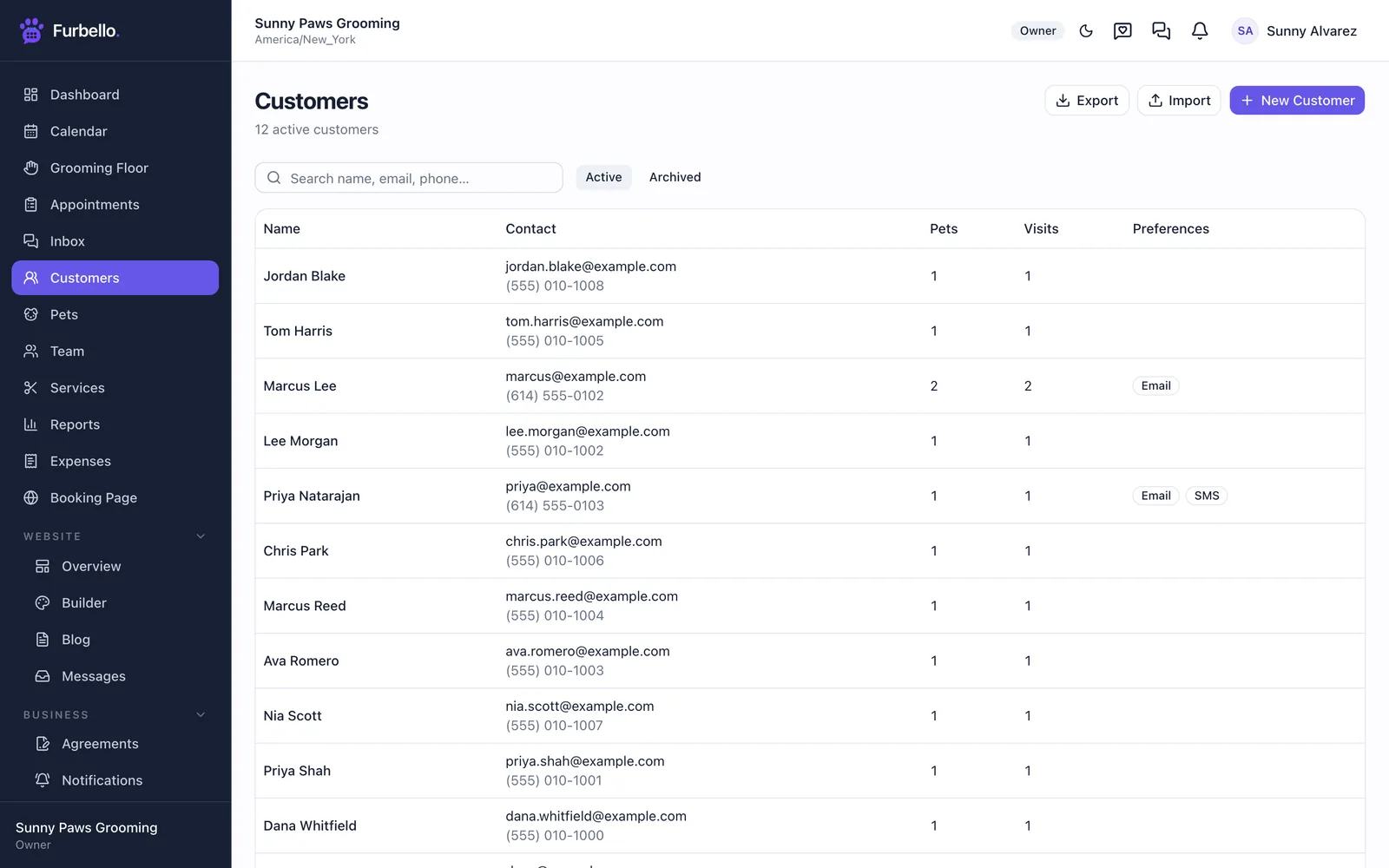
The Customers page. Export is next to Import. Step 2
Include archived clients, if you want them
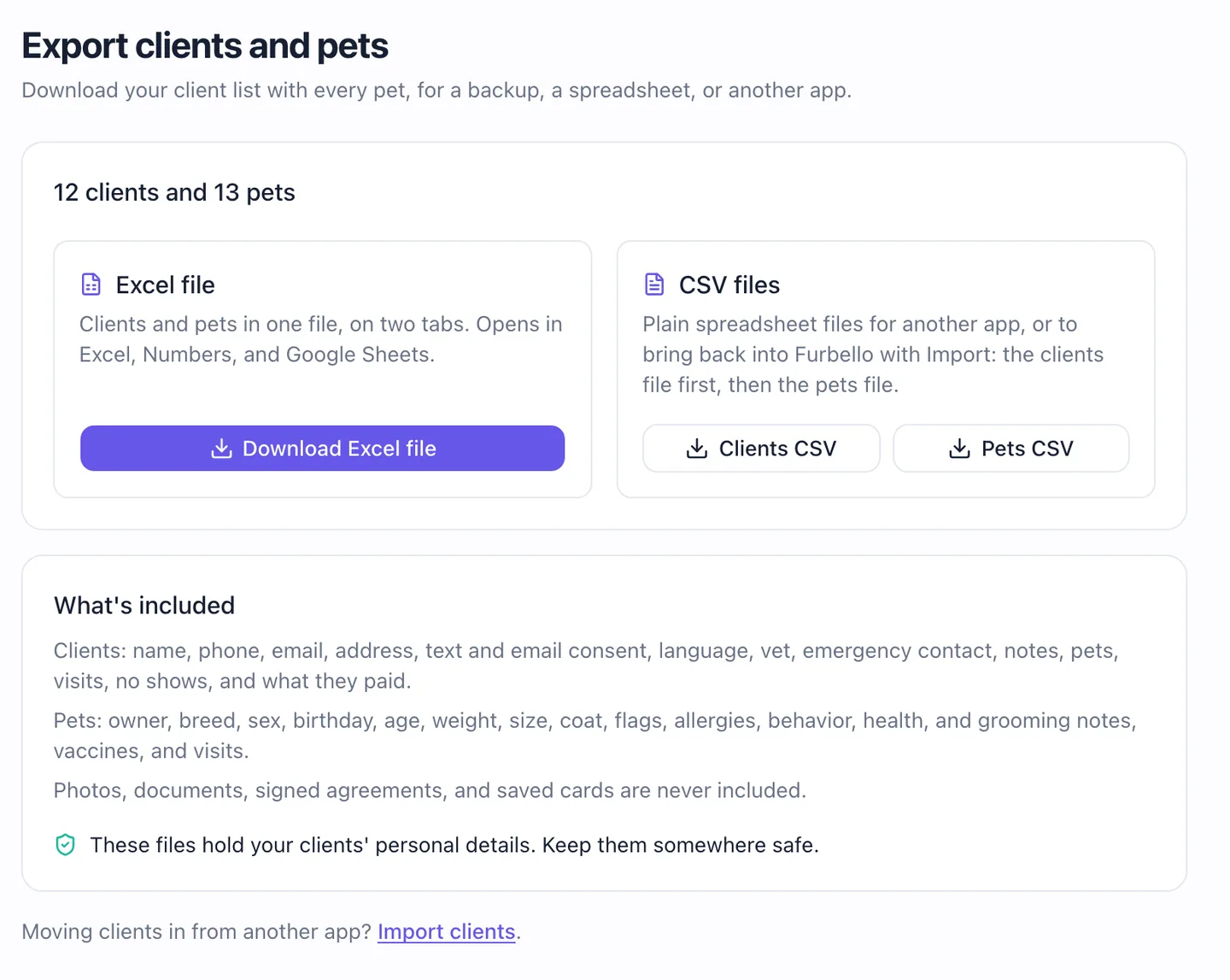
The export page starts with how many clients and pets you have. Archived clients and pets are left out unless you ask for them.
If you have any, a box called Include archived clients and pets shows up above the download buttons. Tick it before you download, and both files get an Archived column so you can tell them apart.
Step 3
Download Excel or CSV
Pick the format that fits what you need:
- Download Excel file gives you one file with two tabs, Clients and Pets. It opens in Excel, Numbers, and Google Sheets. Best for a backup or for working in a spreadsheet.
- Clients CSV and Pets CSV give you two plain files. Best for another app, or for bringing your list back into Furbello later.
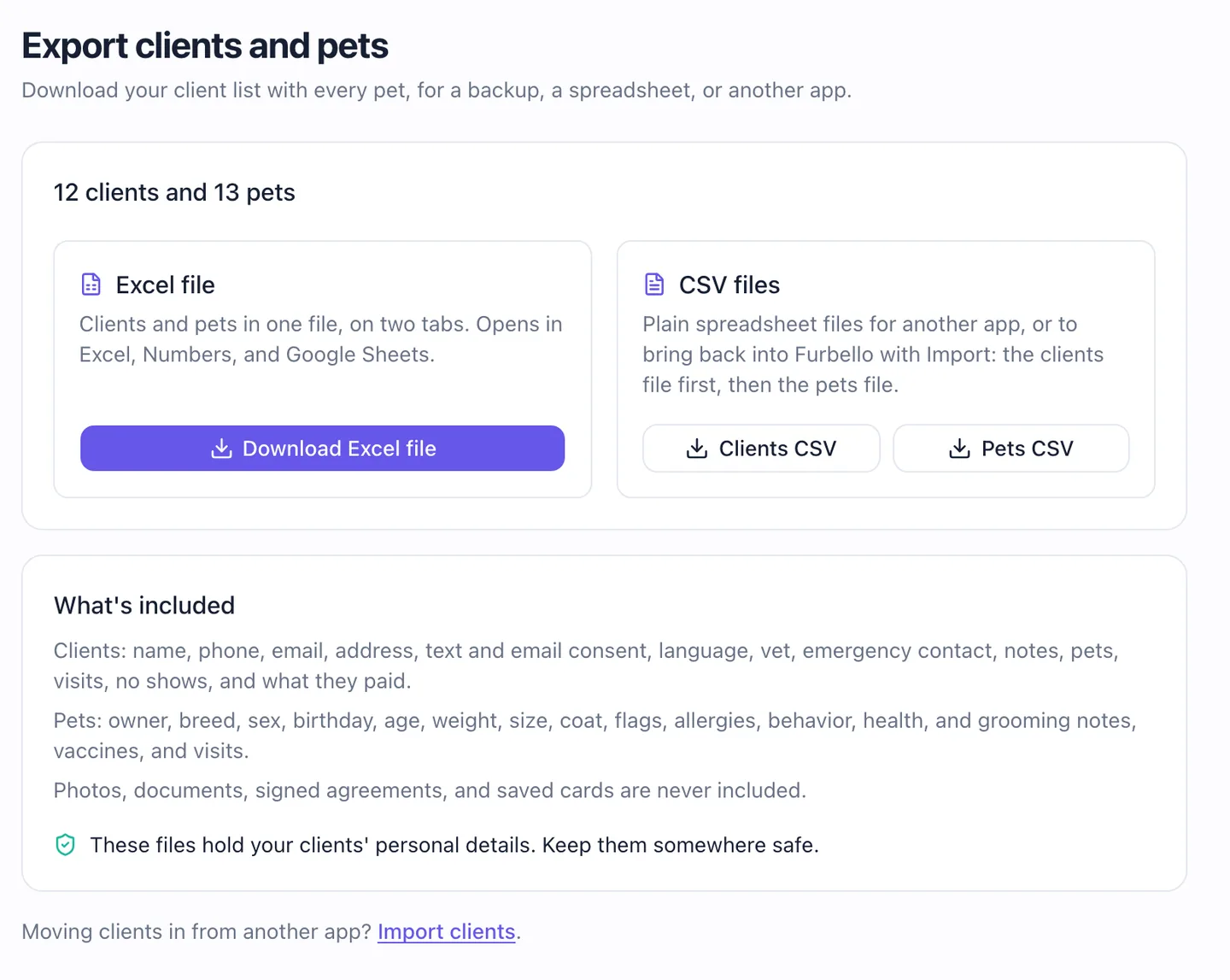
One Excel file with two tabs, or two CSV files. 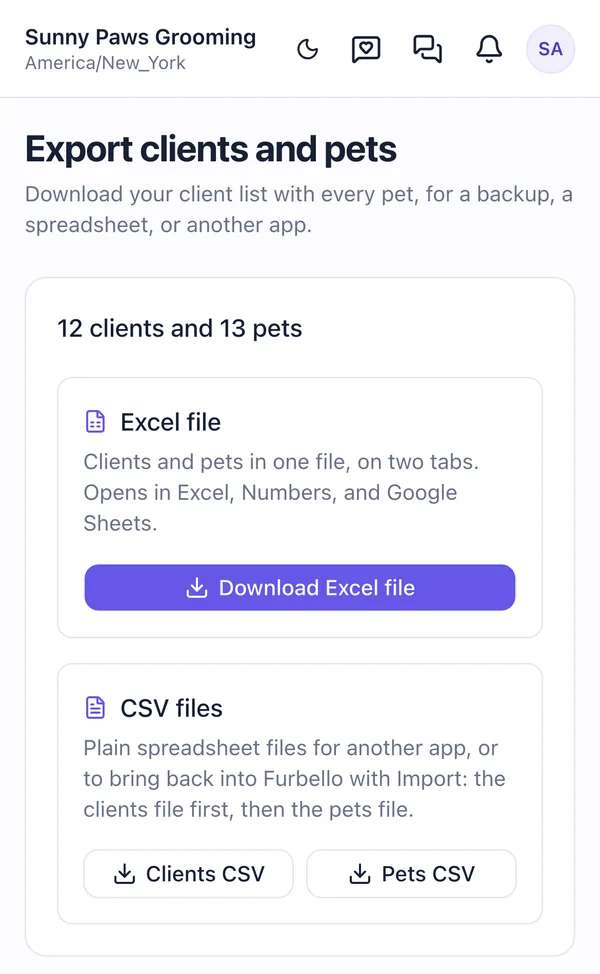
It works the same on your phone. Your browser saves the file right away, named after your business and the date, like Sunny Paws Grooming clients Oct 18 2026.csv.
What's in each file
Excel and CSV hold the same information. The clients list has one row per client, sorted by last name. The pets list has one row per pet, listed under its owner.
Clients: name, phone, email, address, text and email consent, email problems, language, vet, emergency contact, client notes, pet list, where the client came from, client since, last and next visit, visits, no shows, cancelled visits, strikes, total paid, and tips.
Pets: owner, species, breed, sex, birthday, age, weight, size, color, coat, flags, allergies, behavior notes, health and safety notes, grooming notes, client grooming concerns, vaccines, last and next visit, and visits.
Mobile groomers also get each client's service address, gate and access notes, and any other service addresses.
Never included: photos, documents, signed agreements, and saved cards.
Every client has a Client ID and every pet has a Pet ID. The pets file repeats the owner's Client ID, so you can match each pet to its owner in any spreadsheet. The IDs stay the same every time you export.
| Client ID | First name | Last name | Phone | Street | Apt or suite | City | State | ZIP code | SMS consent | Email consent | Email problem | Language | Vet | Vet phone | Emergency contact | Emergency contact phone | Client notes | Pet list | Added from | Client since | Last visit | Next visit | Visits | No shows | Cancelled visits | Strikes | Total paid | Tips | |
|---|---|---|---|---|---|---|---|---|---|---|---|---|---|---|---|---|---|---|---|---|---|---|---|---|---|---|---|---|---|
| CF42FPQ872P | Marcus | Lee | marcus@example.com | (614) 555-0102 | 412 Oak Street | Apt 2 | Columbus | OH | 43215 | Yes | Yes | English | Northside Animal Clinic | (614) 555-0190 | Jenna Lee | (614) 555-0191 | Prefers morning drop off | Mochi, Zeus | Your team | 2026-03-02 | 2026-09-12 | 2026-10-24 | 2 | 0 | 0 | 0 | 350.00 | 55.00 | |
| C2KNJX56GY4 | Priya | Natarajan | priya@example.com | (614) 555-0103 | 77 Maple Avenue | Columbus | OH | 43214 | Yes | Yes | Español | Clintonville Vet | (614) 555-0192 | Text when ready for pickup | Pickles | Online booking | 2026-05-19 | 2026-08-21 | 2026-11-06 | 1 | 0 | 0 | 0 | 85.00 | 15.00 | ||||
| C828EM6XDX6 | Dana | Whitfield | dana@example.com | (614) 555-0101 | 9 Birch Court | Columbus | OH | 43206 | No | Yes | English | Northside Animal Clinic | (614) 555-0190 | Biscuit | Import | 2026-01-08 | 2026-09-30 | 2 | 1 | 0 | 1 | 220.00 | 30.00 |
Sample rows from a made up shop. Scroll sideways to see every column.
| Pet ID | Pet name | Client ID | Owner first name | Owner last name | Owner email | Owner phone | Species | Breed | Second breed | Sex | Birthday | Age (years) | Weight (lbs) | Size | Color | Coat | Coat length | Flags | Allergies | Behavior notes | Health and safety notes | Grooming notes | Client grooming concerns | Vaccines | Last visit | Next visit | Visits | Added |
|---|---|---|---|---|---|---|---|---|---|---|---|---|---|---|---|---|---|---|---|---|---|---|---|---|---|---|---|---|
| PGCMP9P4SKJ | Mochi | CF42FPQ872P | Marcus | Lee | marcus@example.com | (614) 555-0102 | Dog | Toy Poodle | Female | 2021-04-12 | 5.5 | 9 | Small | Apricot | Curly | Medium | Anxious | Nervous with dryers, low speed only | Teddy bear face, short body | Keep the ears long | Bordetella: expires Jan 15, 2027; Rabies: expires Mar 9, 2027 | 2026-09-12 | 2026-10-24 | 2 | 2026-03-02 | |||
| PSPNS9THCQE | Zeus | CF42FPQ872P | Marcus | Lee | marcus@example.com | (614) 555-0102 | Dog | Siberian Husky | Male | August 3 | 52 | Large | Black and white | Double coat | Medium | Deshedding treatment every visit | Rabies: expires Dec 1, 2026 | 2026-09-12 | 2 | 2026-03-02 | ||||||||
| P6STDHX7SMC | Pickles | C2KNJX56GY4 | Priya | Natarajan | priya@example.com | (614) 555-0103 | Dog | Corgi | Male | 2019-06-30 | 7.5 | 27 | Medium | Red and white | Double coat | Sensitive to scented shampoo | Rabies: expires May 20, 2027 | 2026-08-21 | 2026-11-06 | 1 | 2026-05-19 | |||||||
| P9EKMRCVFTQ | Biscuit | C828EM6XDX6 | Dana | Whitfield | dana@example.com | (614) 555-0101 | Dog | Golden Retriever | Female | 2015-09-14 | 11 | 68 | Large | Gold | Double coat | Long | Senior | Hip dysplasia, lift with care | #7 blade on body, rounded face | Rabies: expired Sep 1, 2026 | 2026-09-30 | 2 | 2026-01-08 |
Sample rows from a made up shop. Scroll sideways to see every column.
Dates are written year first, as in the tables above, and money as plain numbers, so every spreadsheet and app reads them the same way.
Moving to another app
These are standard Excel and CSV files, so most grooming and booking apps can read them. If the new app offers to move your data for you, send them the two CSV files.
Names come in separate first and last name columns.
Addresses are split into street, apt or suite, city, state, and ZIP code.
Pets are in their own file, and every row carries the owner's name, email, phone, and Client ID, so each pet can be matched to the right owner.
Pet details like breed, sex, birthday, weight, and notes have their own columns. Anything a new app has no place for can usually go into its notes.
Vaccines are listed together in one cell per pet, like Rabies: expires Mar 9, 2027; Bordetella: expires Jan 15, 2027. You may need to enter them one by one in the new app.
Visit history comes as totals and dates: visits, last visit, next visit, no shows, and what each client paid. Individual appointments and services are not part of this export.
Bringing the files back into Furbello
Opening a second shop, or starting over in a new Furbello account? The CSV files go right back in through Import. Do it in this order:
- In Customers, tap Import and choose the clients CSV. Furbello knows its own column names in English and Spanish, so the columns match on their own. Check the preview, then import.
- Run Import again with the pets CSV. Each pet lands on its owner, matched by email or phone.
Import brings back names, contact details, addresses, text consent, vet and emergency contacts, notes, and each pet's details. Visit counts, payments, and vaccines stay in the files for your records.
Nothing is saved until you confirm the preview, and an import can be undone in one click until one of its clients has an appointment. Import never overwrites a client you already have: when the email or phone matches, it only fills in empty fields and adds pets that aren't there yet.
Keep your files safe
These files hold your clients' personal details. Keep them somewhere safe, share them only with people you trust, and delete copies you no longer need.
Only people with export access can download your list. When Furbello support looks into your account to help you, exports are turned off, so your client list never leaves with anyone else.
Questions
No. Exporting your clients and pets is included, and you can download them as often as you like.
No. Exporting only makes a copy. Your clients, pets, and appointments stay exactly as they are.
Only if you allow it. Owners and admins can export by default. For anyone else, open Team, tap Access next to their name, choose Custom, and switch on Export clients and pets.
Your access doesn't include client phone numbers, emails, and addresses, or reports, so those columns are left out. The owner can change what you can see in Team.
Excel for a backup or to read your list in a spreadsheet, since clients and pets are in one file. CSV for another app or to bring the list back into Furbello, since most import tools ask for CSV.
Yes. Upload the Excel file to Google Drive and open it with Google Sheets, or bring a CSV file in with File, then Import.